Invoicing timecards is presented in a User Interface similar to attaching approved T&M forms to an invoice,
Once your submitted timecards have nee approved you are able to invoice them from this routine. An approved timecard invoice is considered approved and will be considered as paid by Nexus.)
Select the Invoice Timecards button to open the Invoicing screen as shown below. Only approved timecards will be displayed for invoicing. Select the form you want to attach to view it. Select the checkbox next to the form name to attach the form and all supporting documents attached to that form. You may select (attach) multiple forms from this screen. After selecting the checkbox for the desired form(s), click the Attach button to attach the selected form(s) to the current Invoice. To abort attaching any forms simply click Cancel.
Clicking the "Include non-approved forms" checkbox will display all forms that match the Invoice criteria. They cannot be attached to an invoice unless approved, but are available to view in case you want to see any applicable forms that are still pending approval.
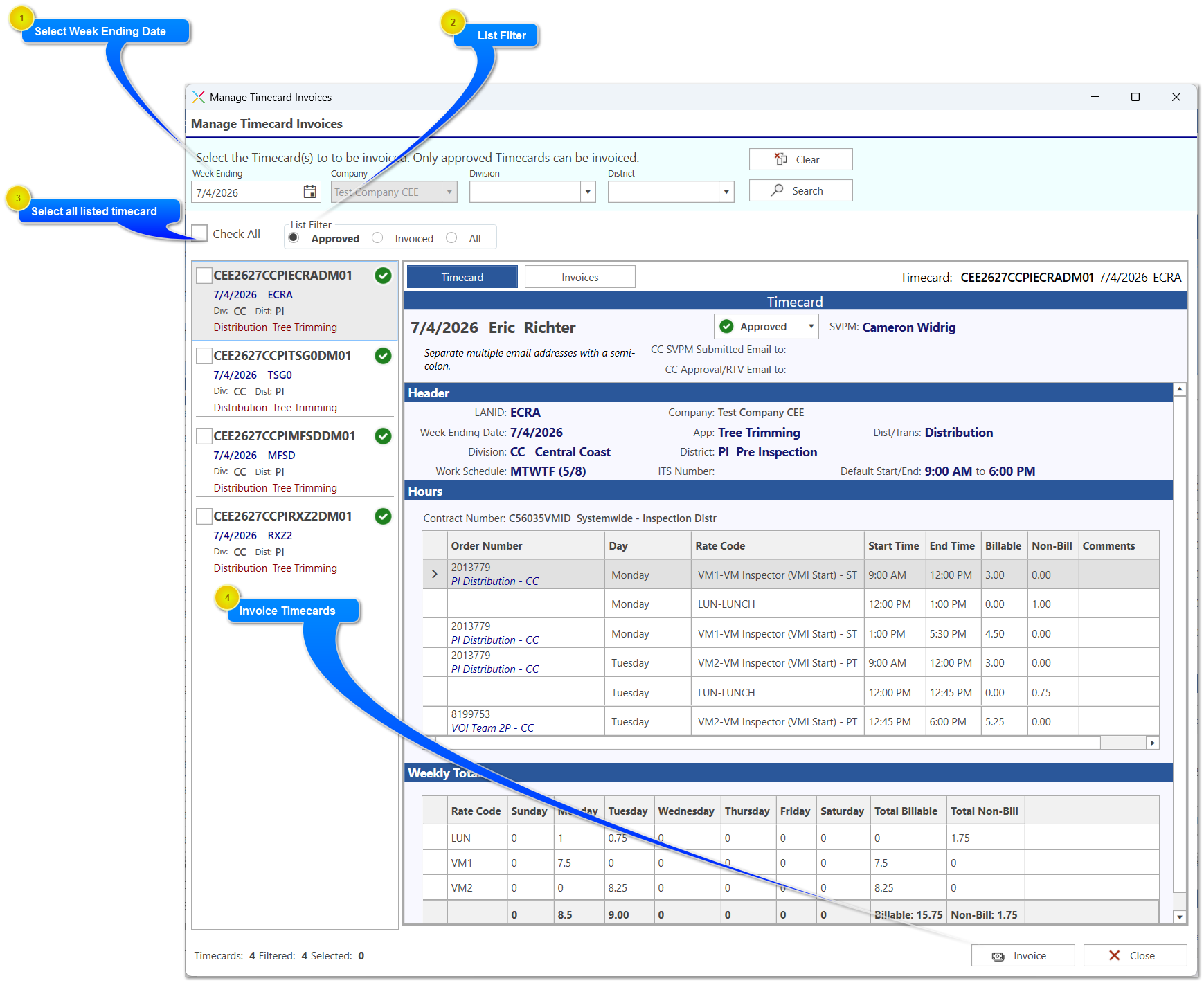
Select Week Ending Date
Timecards can only be invoiced one week ending date at a time. Select tthe week ending you want to invoice and click the Search button. You can also filter by division and district if you like.
The list filter defaults to Approved timecards only. Select view for Approved only, Invoiced, or All timecards matching criteria (including not approved). Only approved timecards can be invoiced so the check box will be grayed out for all non approved timecards.
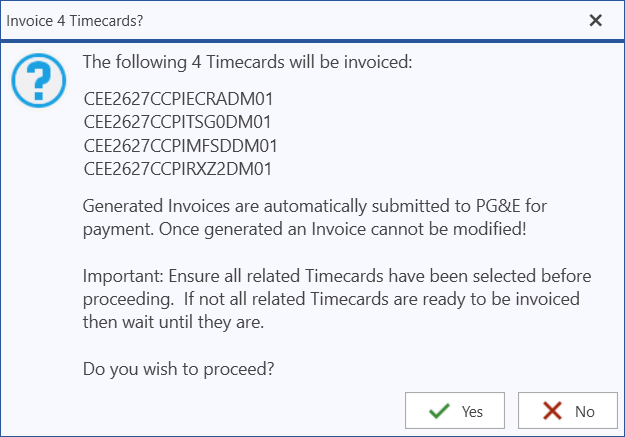
Once you have selected your timecards, click the Invoice button. You will be presented with a list of timecards about to be invoiced. Read message carefully as there is no way to UNDO invoicing after you select Yes.
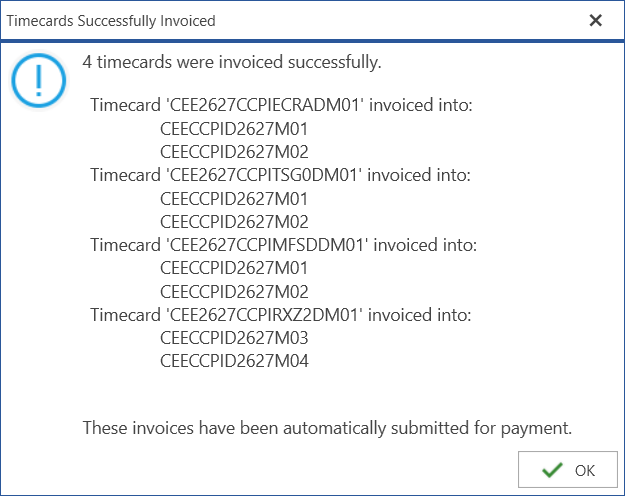
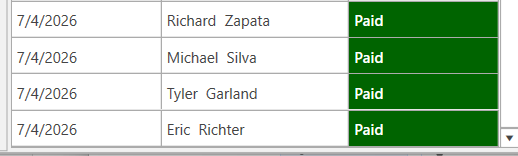
If you click No you are returned to the invoicing screen to make changes or cancel invoicing. If you click Yes, then all selected timecards are invoiced and if successful you will see a screen similar to the following. SInce Nexus considers a timecard invoice as "Paid", the status for the timecard will display as Paid in Nexus