The Timecard form is used to fill out weekly time cards for crews. Timecard is currently in Pilot testing which just a few crews. You will only see the Timecard button if you have been authorized to use it for timecard reporting and invoicing.
This routine is currently in a Pilot phase and we rely on those participating in the testing pilot to report any and all issues found while using this routine. Additionally, once you become familiar with the program features we are asking you to submitting any ideas you have for making the program work easier for you, or ideas for enhanced features you would like to see available.
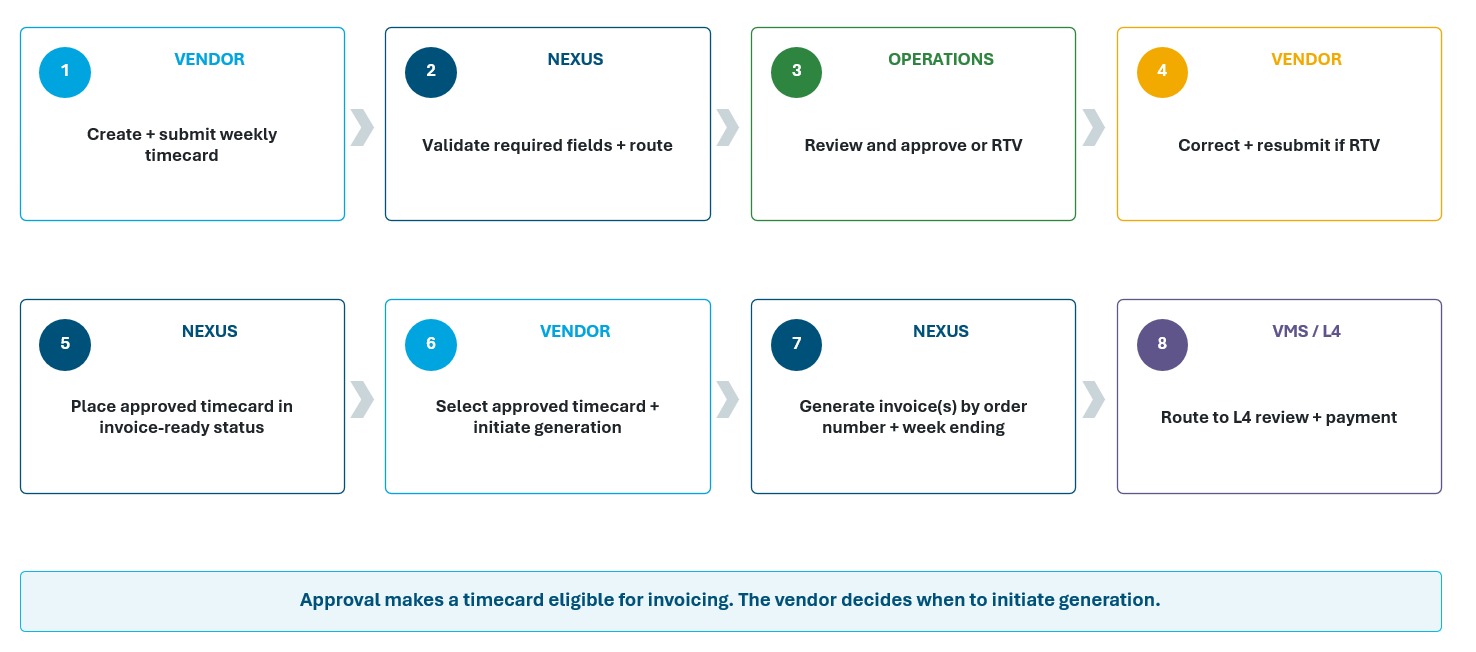
The process is similar to the way the T&M Form process works. You will fill out your timecards, submit to PG&E for review and approval. Once approved you can then select which approved timecards you want to invoice, and the invoice is paid without further review. It is that simple. If there are any issues with your timecard submissions they will be RTV'd to the person who created the timecards where they can be corrected and resubmitted for approved.
Here is a brief summary of how this new process works. This guide will walk you through the steps needed to complete timecard entry, submission, and invoicing.
You have been using the excel version of this form and running through the different steps to get the time sheets reviewed, approved, and paid. This process replaces those steps in a manner that reduces the time and steps it now takes. For example, a T&M Form is no longer needed for submitting your time cards.
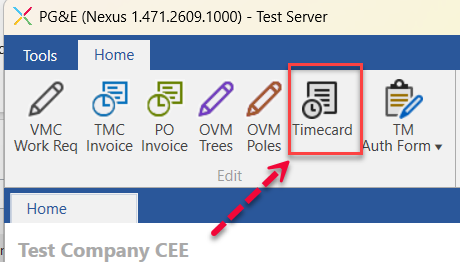
To access the creation and management of these time cards, select Timecard button from the Home ribbon in Nexus as shown below. If you do not see this button, then either you are not authorized to use the program yet, or you need to be assigned the special keys to use this routine. If you are authorized to be part of this pilot and do not see this icon, contact VMSupport@pge.com to request access.
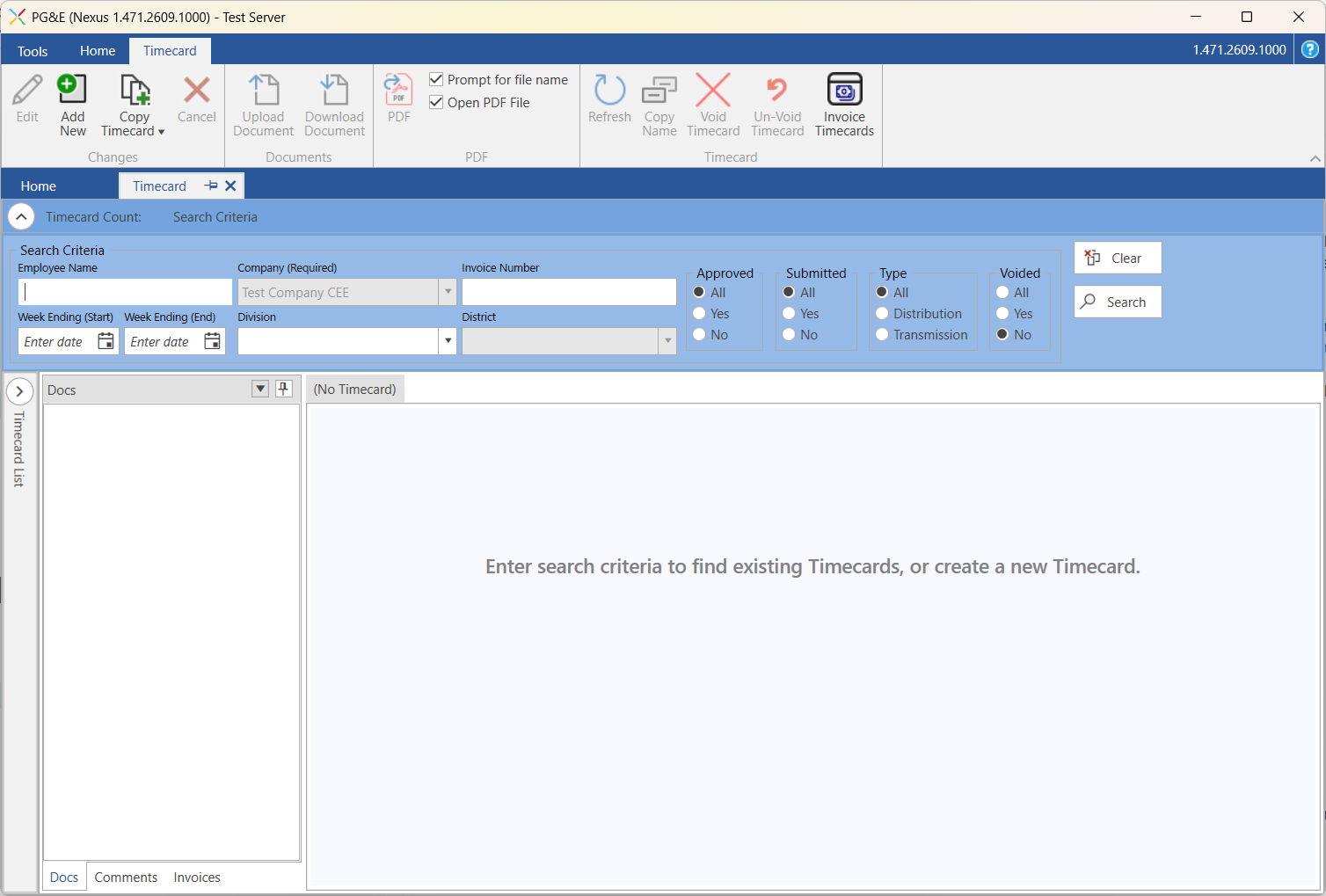
Once selected, the Timecard Form will open. From here you can view/edit existing timecards, or select Add New to start a new timecard.