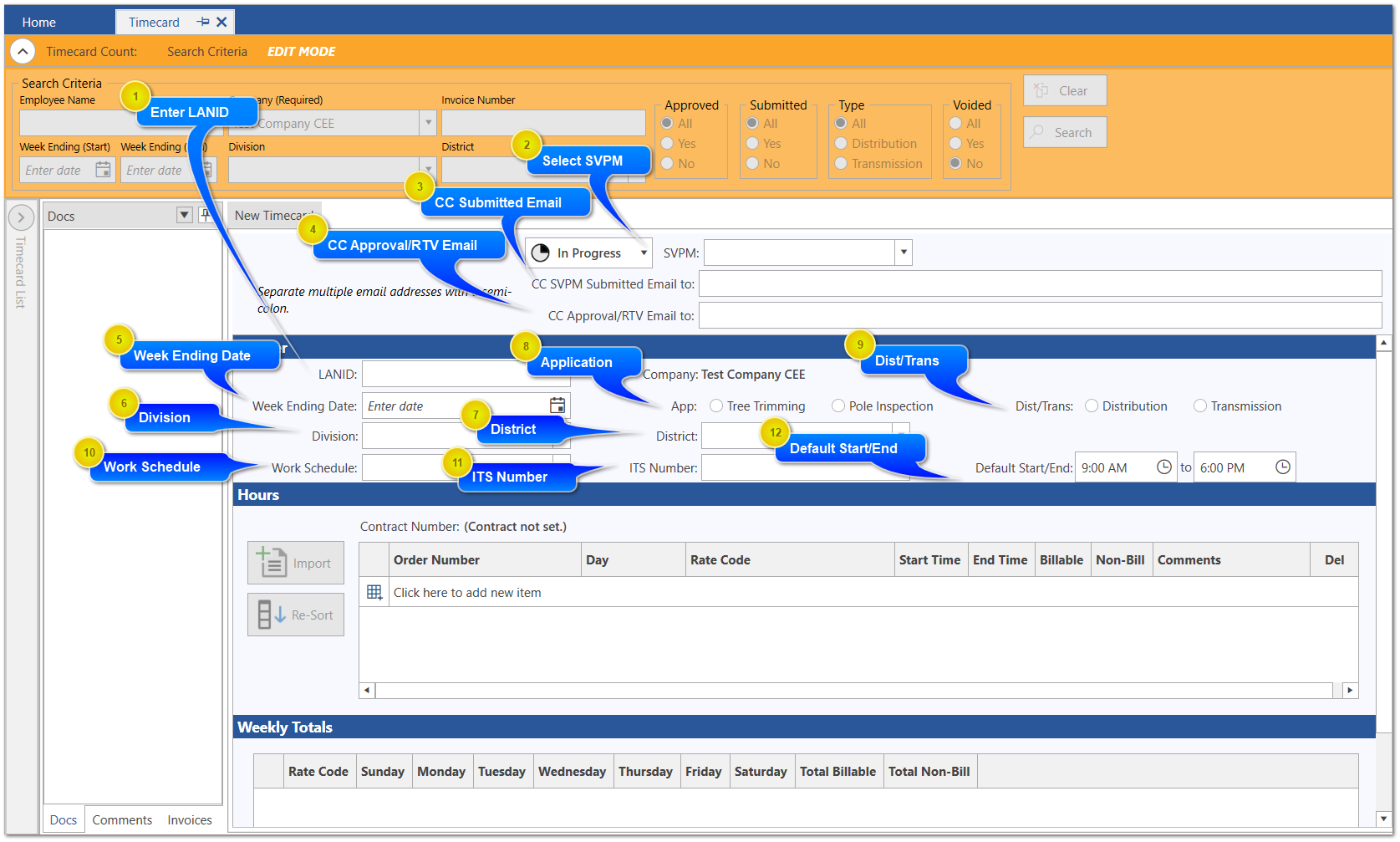
When Add New on the Timecard Ribbon is selected you are presented with an empty form to fill out. The orange banner indicates you are in Edit mode. Follow the step by step instructions below to fill out the form. You are only allowed to save the form once all required entries have been made.
When completed, click the Save button. If there are any errors detected on the form, they will be displayed, outlined in red, and the form will not be saved. Correct any missing or incorrect data, and then click Save again.
You can use the Copy Timecard button to copy another timecard to create a new one. See View/Edit/Copy_New for more information
Enter LANID
Enter the LANID of the person you are creating a time card for. If the LANID is valid and maps to an SVPM, the SVPM will be automatically filled in and cannot be changed. If not mapped, then you will need to select the SVPM form a pulldown list of valid SVPMs.
Once LANID has been entered, if SVPM is blank, then select it from the pull-down list the SVPM that will review and approve this timecard. Once your timecard is completed and submitted to PGE, the SVPM will receive and email with a PDF version of the timecard attached, as well as a link to review and approve the form in VMS
Optionally enter an additional email address where you want a copy of the email sent when you Submit to PGE. The timecard is emailed to SVPM, and will be copied to email address(es) on this line. You can enter more than one email, but they need to be separated by a semicolon ";" and fit in the 255 character field
Back-office will notify the user who created the form once the form is approved. Since that person has to be a valid PG&E LANID, the secondary email section can be filled in with a vendor email to also send notice of approvals to. You can enter more than one email, but they need to be separated by a semicolon ";" and fit in the 255 character field
Select the applicable contract from the pull-down list. If no contract is available, at this point verify your Division, District, and time period are valid and don't cross the contract start or end date boundaries
The Start and End will used to auto fill start and end times for each day. User will be able to modify the individual day entries, but this will default the entries for you.


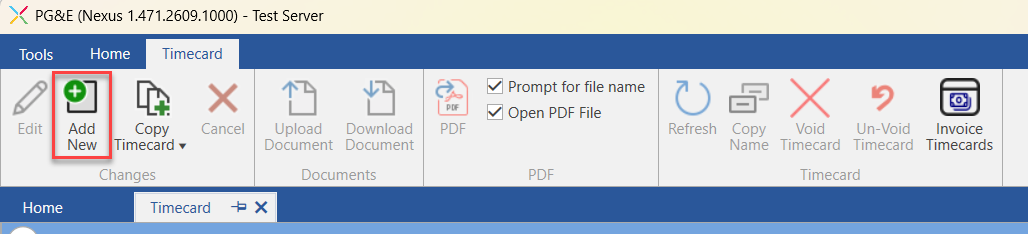
 You can use the