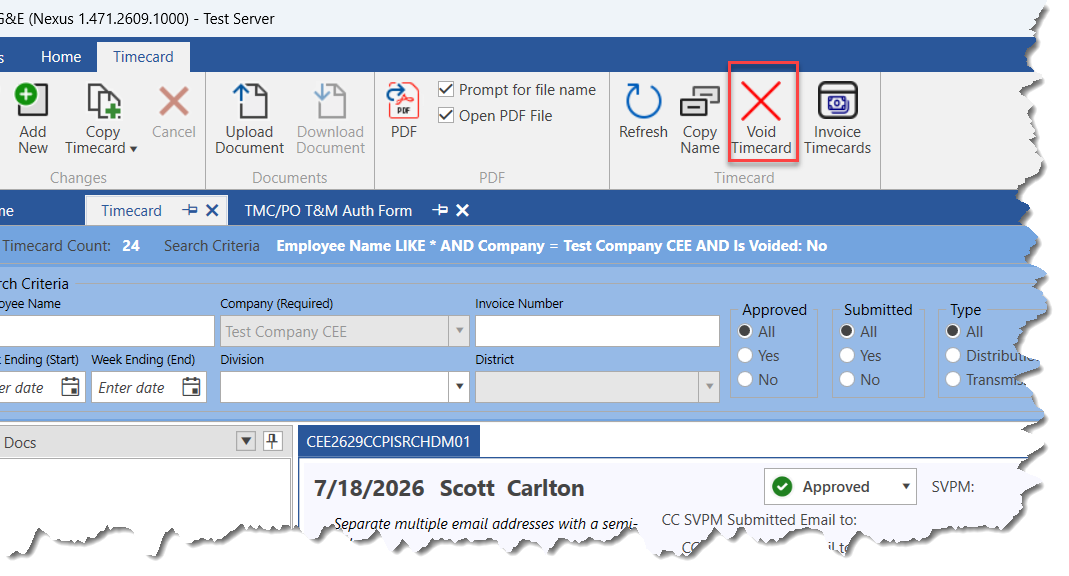
Users can void a timecard unless it has been approved or paid. Users must be in Browse Mode to Void a timecard. Simply view the desired form on screen in Browse mode, click the Void button on the Timecard ribbon, and confirm the void. Once voided, you can click the Un-Void button to restore the form.
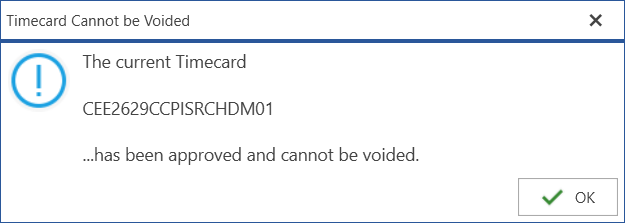
If a timecard has been approved or paid then it cannot be voided. Users will see a message if they attempt to void such an invoice.
When a form is successfully Voided, all dates are cleared from the submission of the form, including vendor completion date and by (date submitted), and RTV date and by if applicable.
Once a timecard is voided, while in Browse mode click Un-Void to put the form back into "In Progress" mode. As stated above, a voided form resets the status of the form to In Progress, in effect allowing a user to make changes and re-submit the timecard without having to create a new timecard.